Always search for a traveler before submitting a supplier request form. Visit the
Basic Supplier Search page to learn how to search for a supplier.
Use this form to establish a non-employee guest in BUY.IU. This is required prior to booking or reimbursing travel expenses.
This basic form does not require the full supplier registration process.
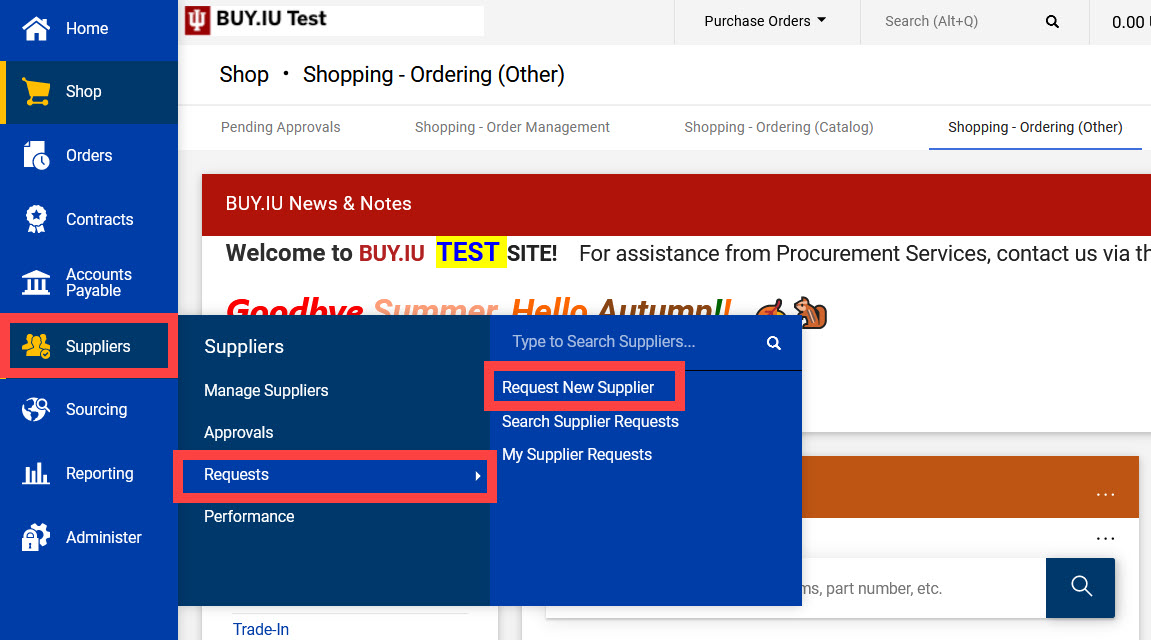
Log in to BUY.IU and navigate to the Supplier module, then Requests. Select Request New Supplier to view a list of supplier request forms.
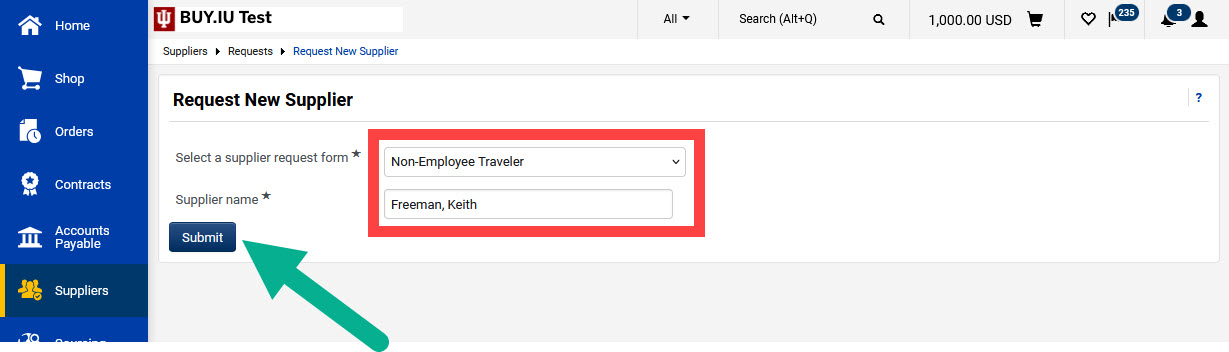
Select Non-Employee Traveler from the drop-down menu and enter the nonemployee traveler’s legal name in the Supplier name field.
Enter the name as Last Name, First Name.
Click Submit to access the form.
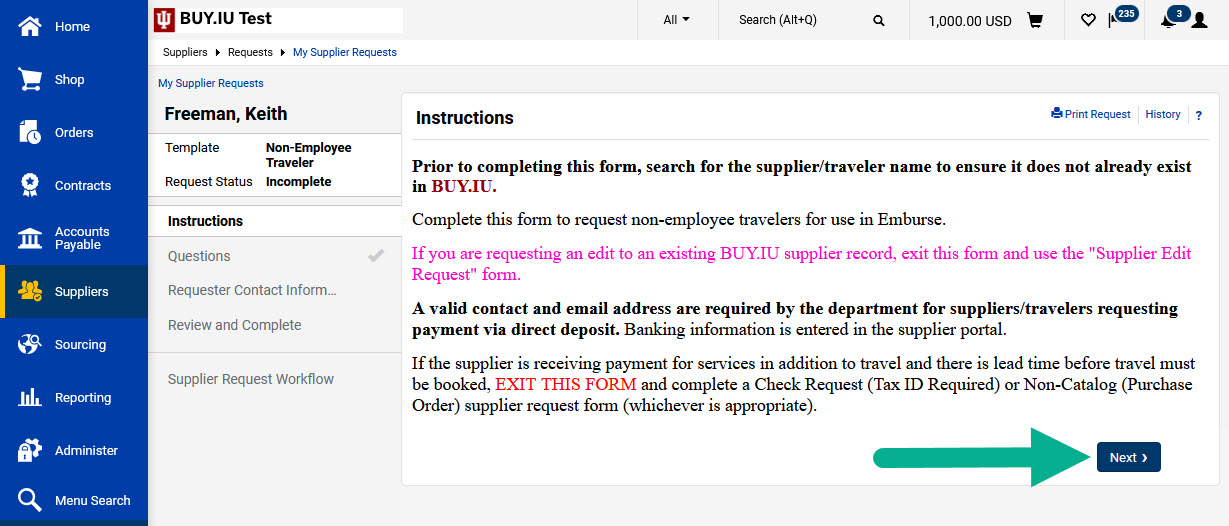
Review the instructions and click Next.
Fields marked with a star are required.
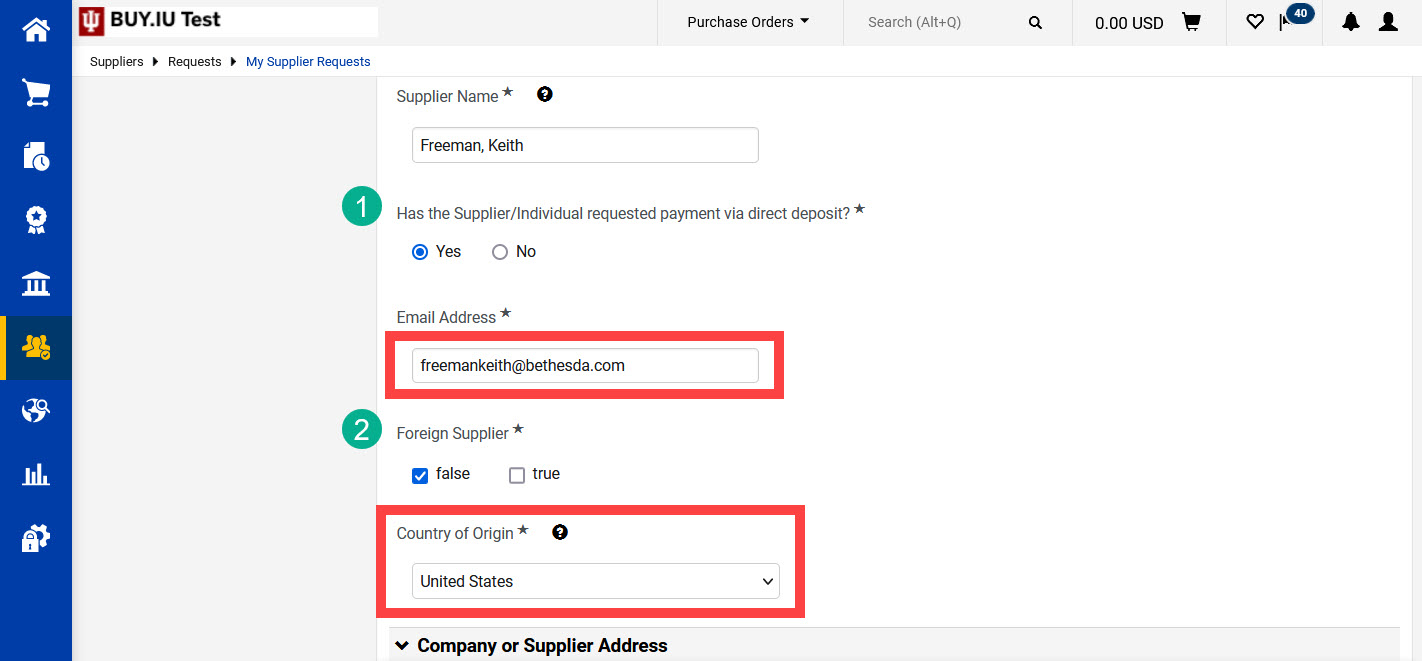
BUY.IU fills in the Supplier Name field. Answer the remaining questions in the Supplier Information section. Below are details about the questions in this section:
- Question 1: Marking “Yes” to this direct deposit question generates a new field which prompts you to enter the supplier’s email address. The supplier will receive an email invitation to enter their banking information only in a supplier portal.
- Question 2: If the supplier’s residence is within the US, check “false” on question three. Then select the supplier’s Country of Origin, or their country of residency, from the drop-down menu. This field is required for US and non-US suppliers.
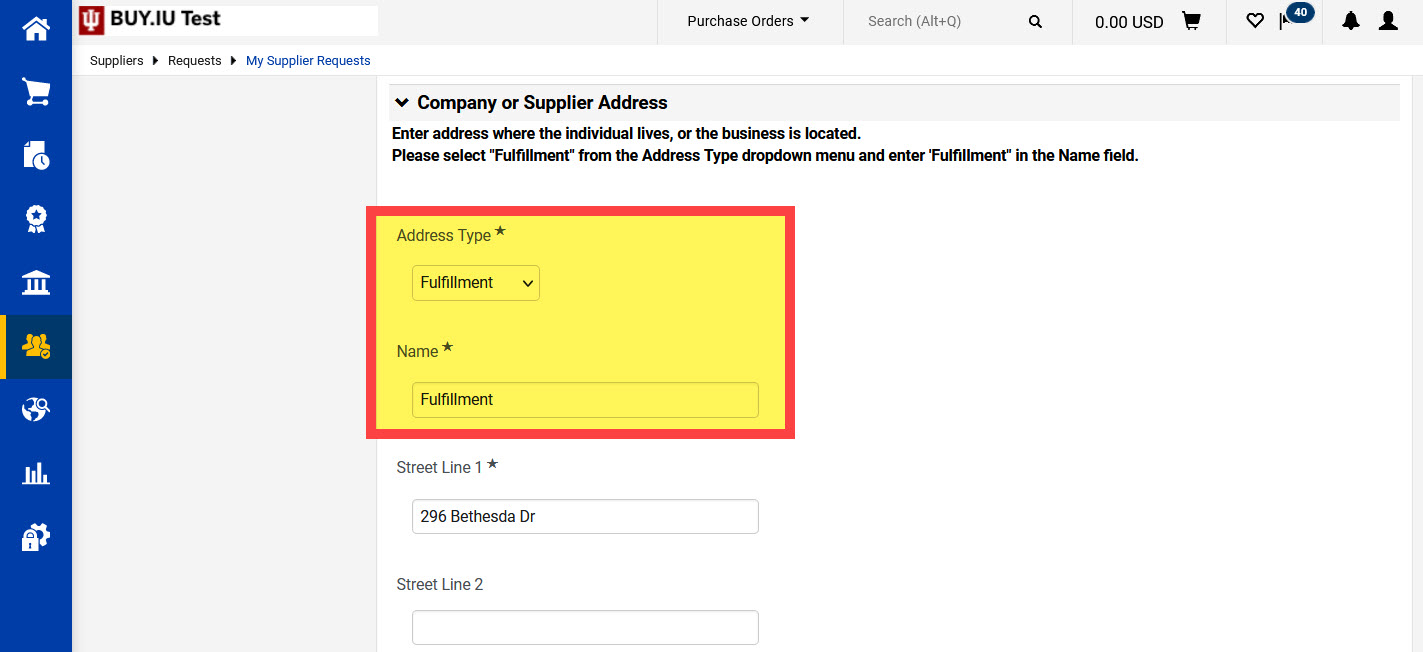
Scroll down the page to the Company or Supplier Address section.
Select “Fulfillment” from the Address Type drop-down menu. Enter the word “Fulfillment” in the Name field.
You must complete the drop-down and Name field as described. If these fields are not correctly completed your request form will be returned to you.
Enter the address where the nonemployee traveler lives or their business is located in the appropriate fields. The “Fulfillment” address does not represent where payment will be sent.
Finally, complete the Payment Address section.
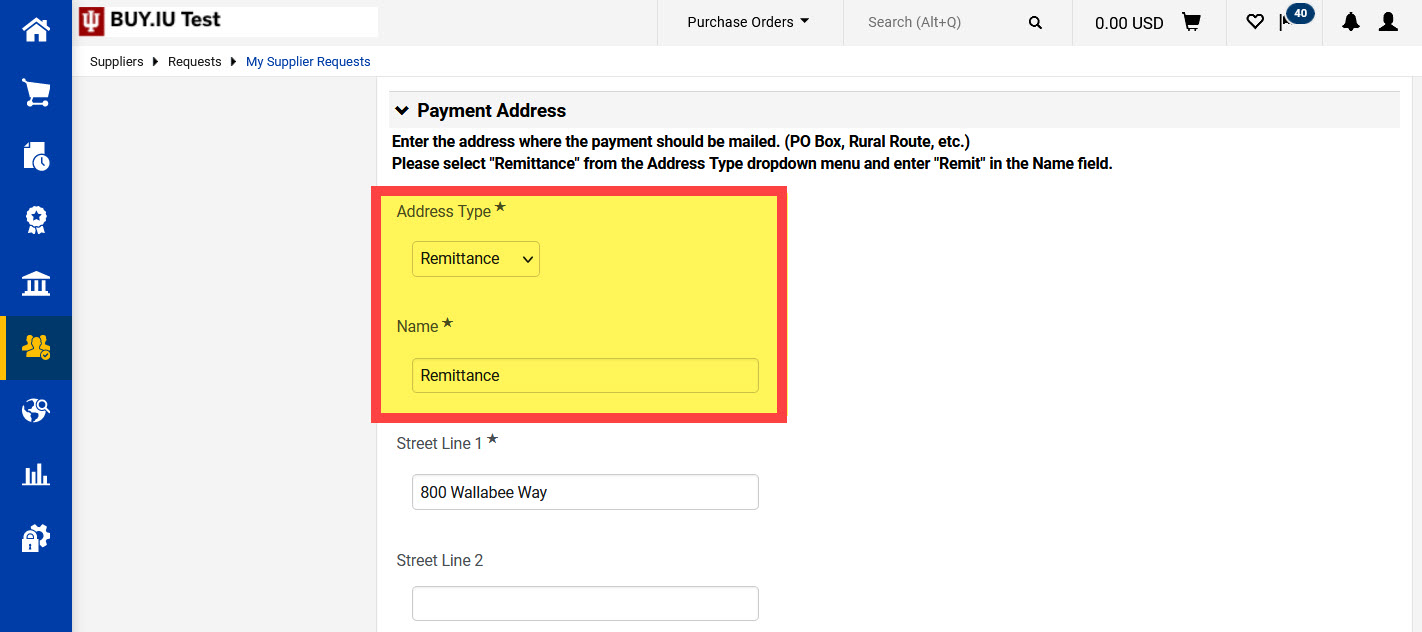
Select “Remittance” from the Address Type drop-down menu. Enter the word “Remit” in the Name field.
You must complete the drop-down and Name field as described. If these fields are not correctly completed your request form will be returned to you.
The “Remittance” address represents where payment will be sent. Enter the supplier’s remittance address information in the appropriate fields. Their remittance address may be the same as their fulfillment address. If this is the case, you must still enter the address a second time.
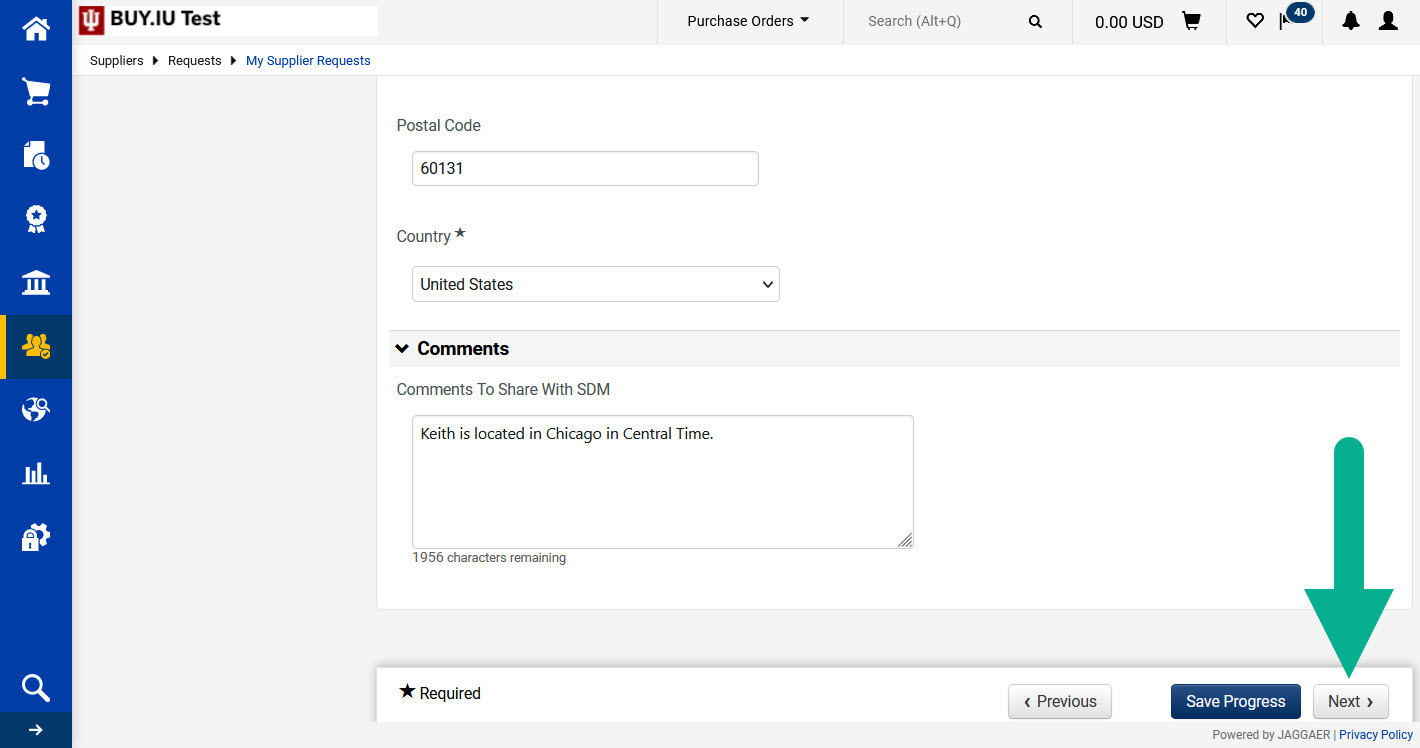
Enter any additional information for the Supplier Data Management (SDM) team in the Comments field at the bottom of the form. The following are examples of helpful comments for SDM:
- The supplier's title (Doctor, Professor, etc.).
- Alternate names, including preferred names for transitioning individuals.
- Additional contact information.
Click Next to move onto the next page.
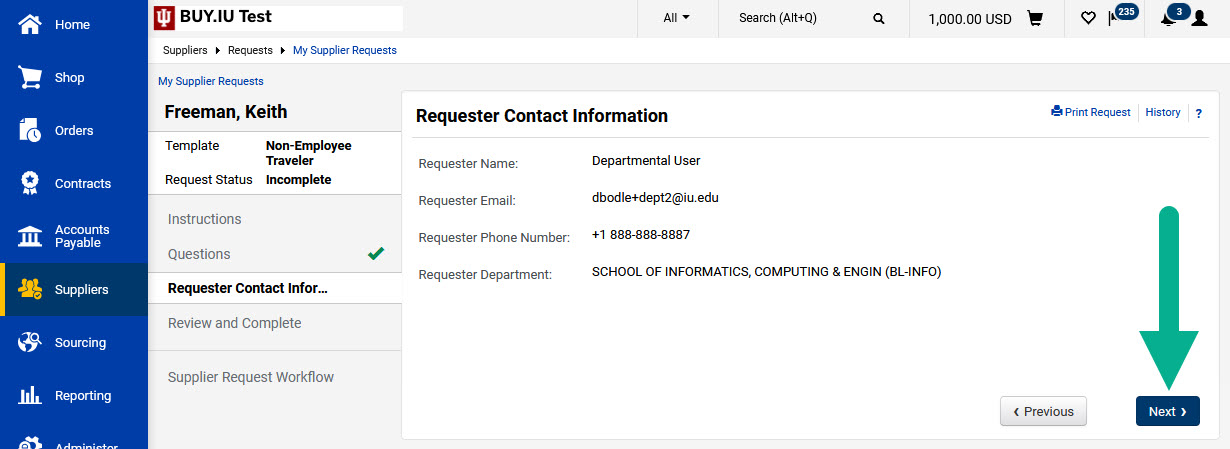
The next page displays your contact information. Click Next.
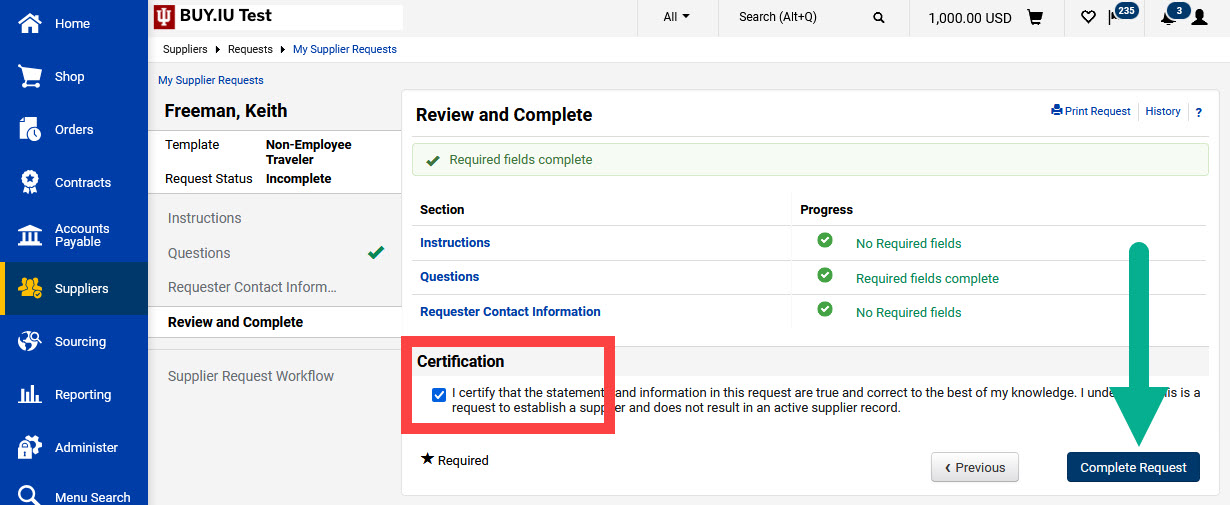
Check the box next to the statement of certification and click Complete Request to submit the form.
You will receive an email notification when the supplier is approved and ready to use.