

This page explains how to assign a cart to yourself to save for later and assign a cart to another user for review. Saving a cart allows you to start a new order.
Assign a cart to another user when:
- You are a student or affiliate. These individuals can prepare carts but cannot submit them.
- Your department’s local procedure requires you to assign the cart to another staff member for review.
- You want to have another person review your order before it is submitted. A cart can only be accessed by the person who prepared it.
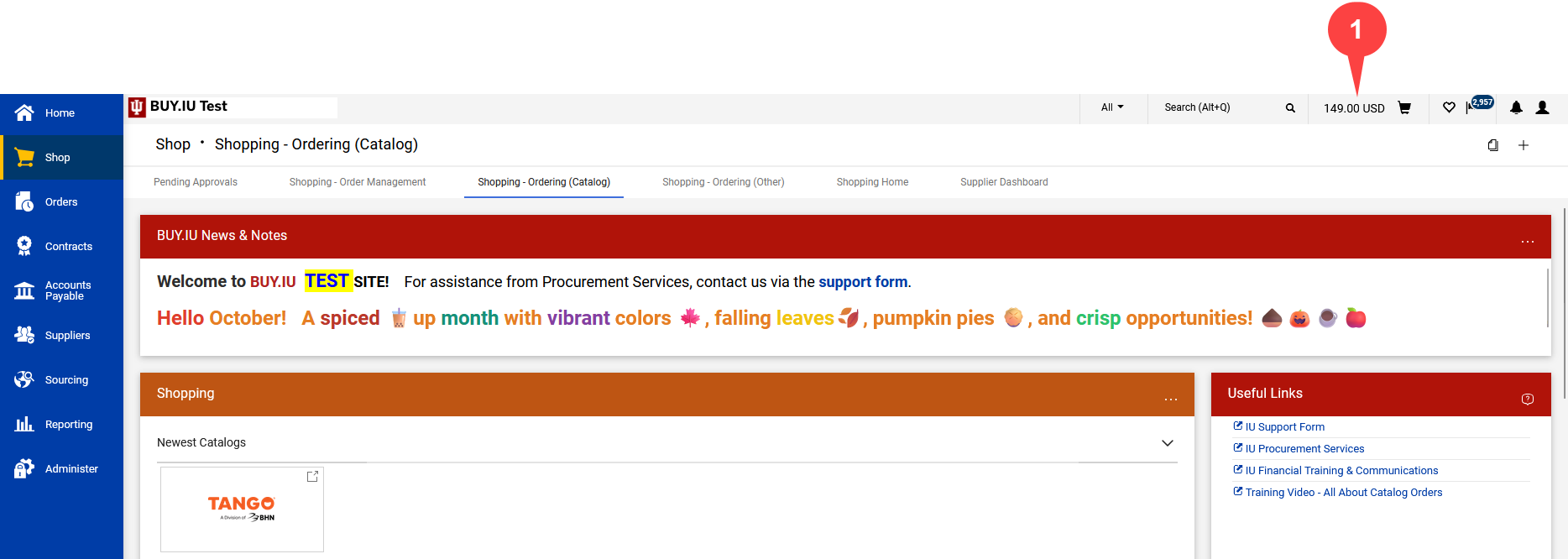
Step 1: If you aren’t already in the shopping cart, click the Shopping Cart in the top navigation menu to navigate to it.
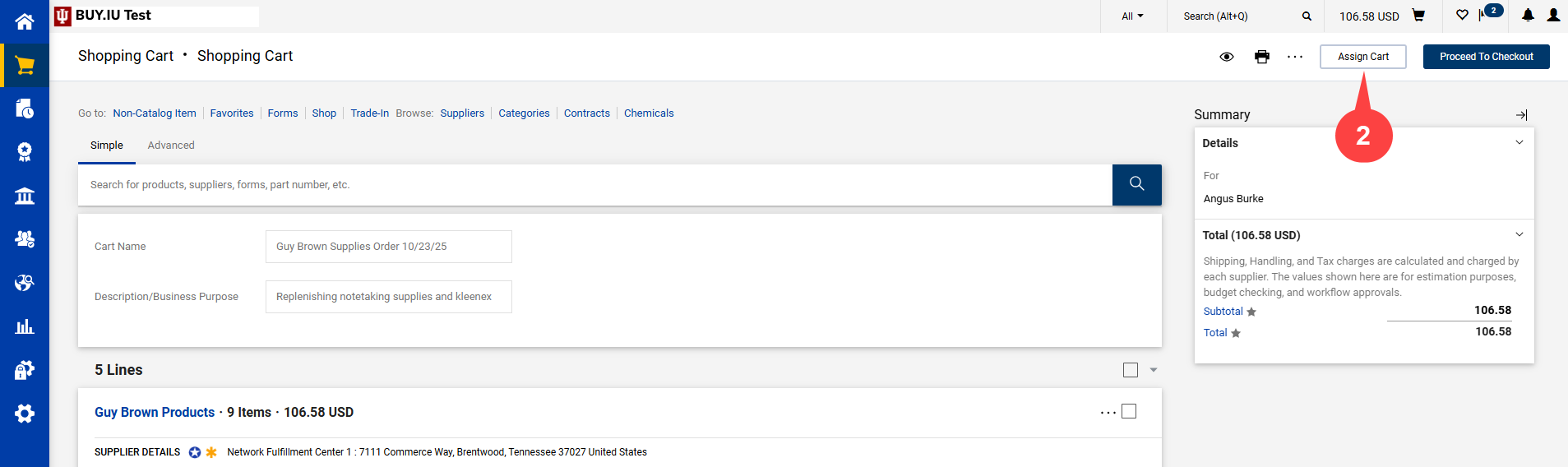
Step 2: In the Shopping Cart, click Assign Cart.
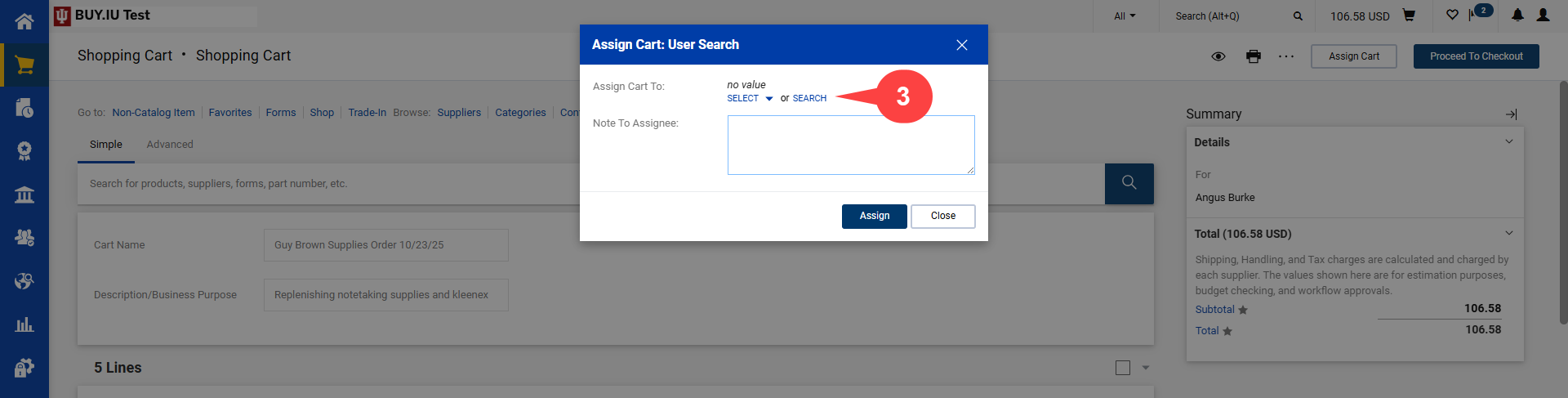
Step 3: The Assign Cart window opens. Click the Search button to locate a user to assign your cart to.
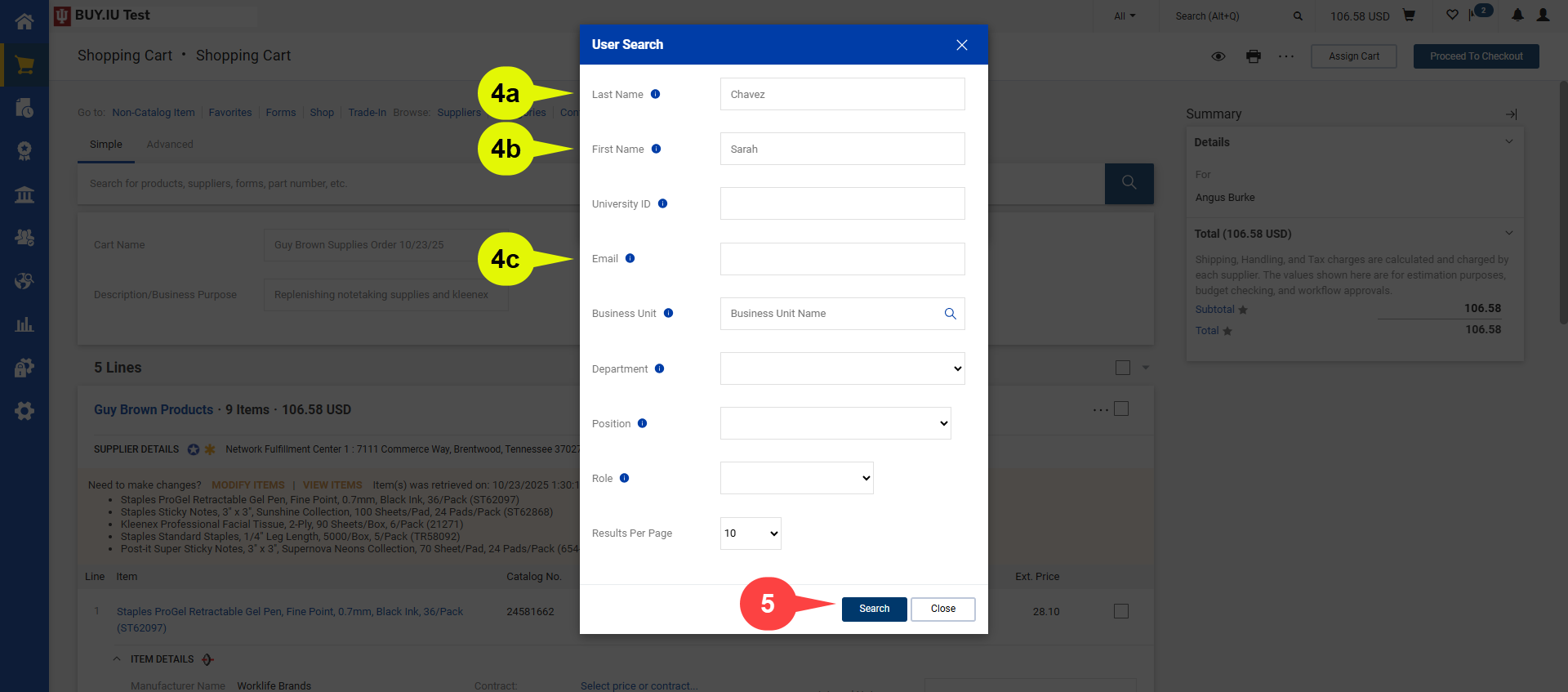
Step 4: The User Search window opens. Search for the person you need to assign the cart to using the following fields. If you are saving the cart for later, enter your information in these fields.
- Last Name
- First Name
Step 5: Click Search.
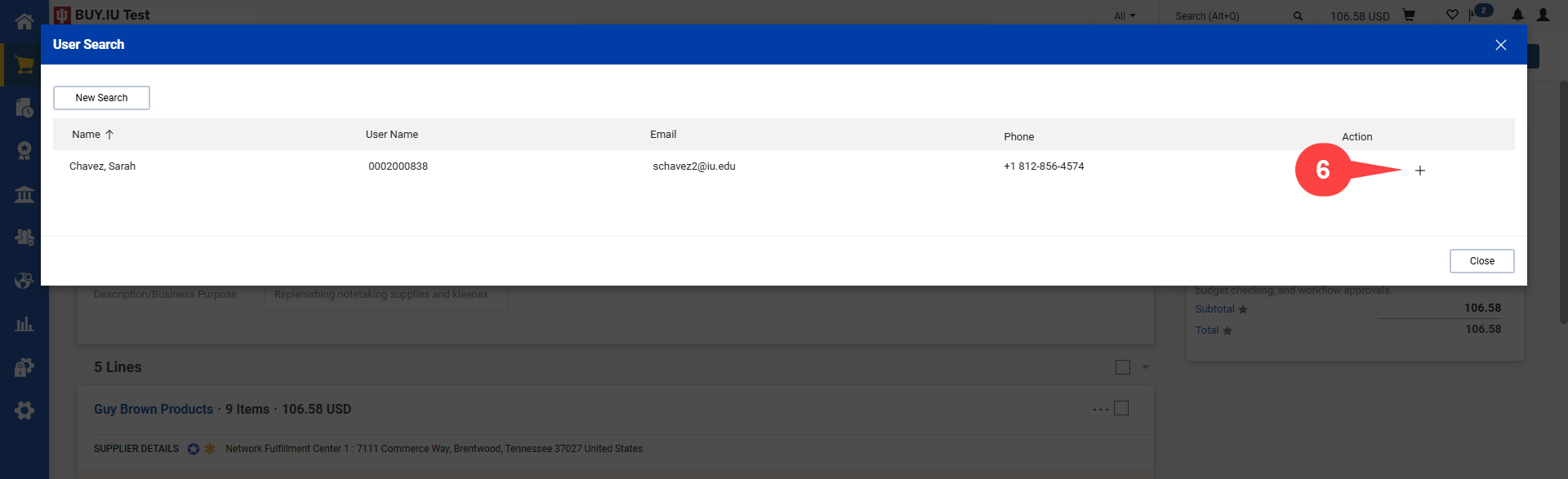
Step 6: The window refreshes with your search results. Click the Plus icon (+) in the Action column for the user you are assigning the cart to.
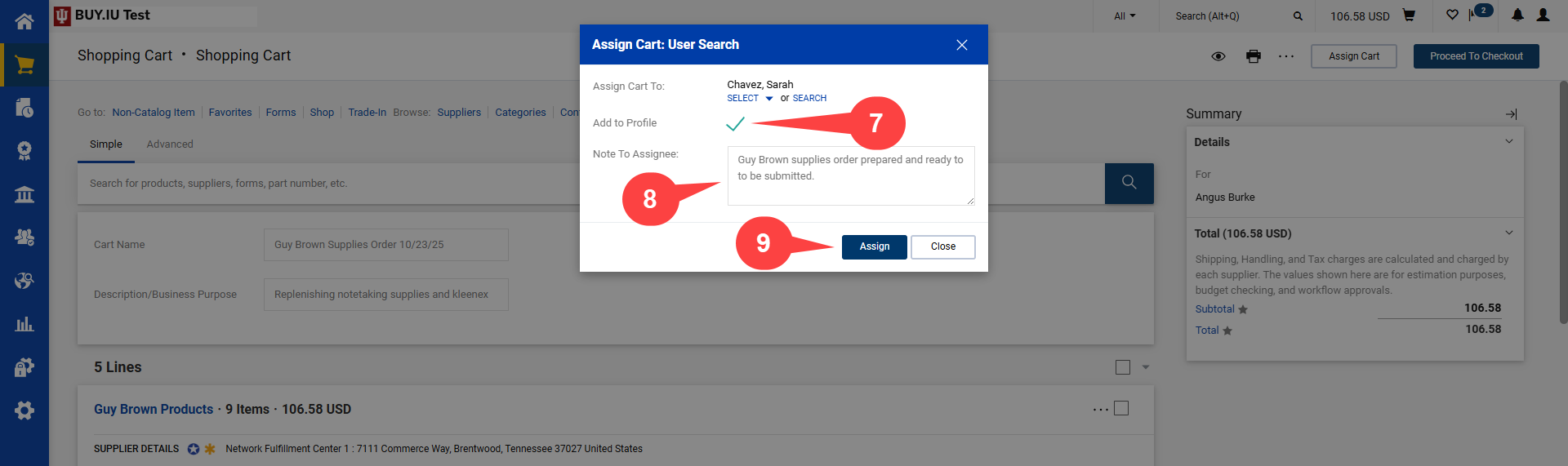
Step 7: The user you selected is returned to the Assign Cart User Search window. Check the box next to Add to Profile to save this user for future cart assignments.
Step 8: In the Note to Assignee field, describe why you are assigning the cart to them. In this example, we entered “Guy Brown supplies order prepared and ready to be submitted.”
Step 9: Click Assign.
BUY.IU assigns the cart to the user you specified. The page refreshes and displays a confirmation message.
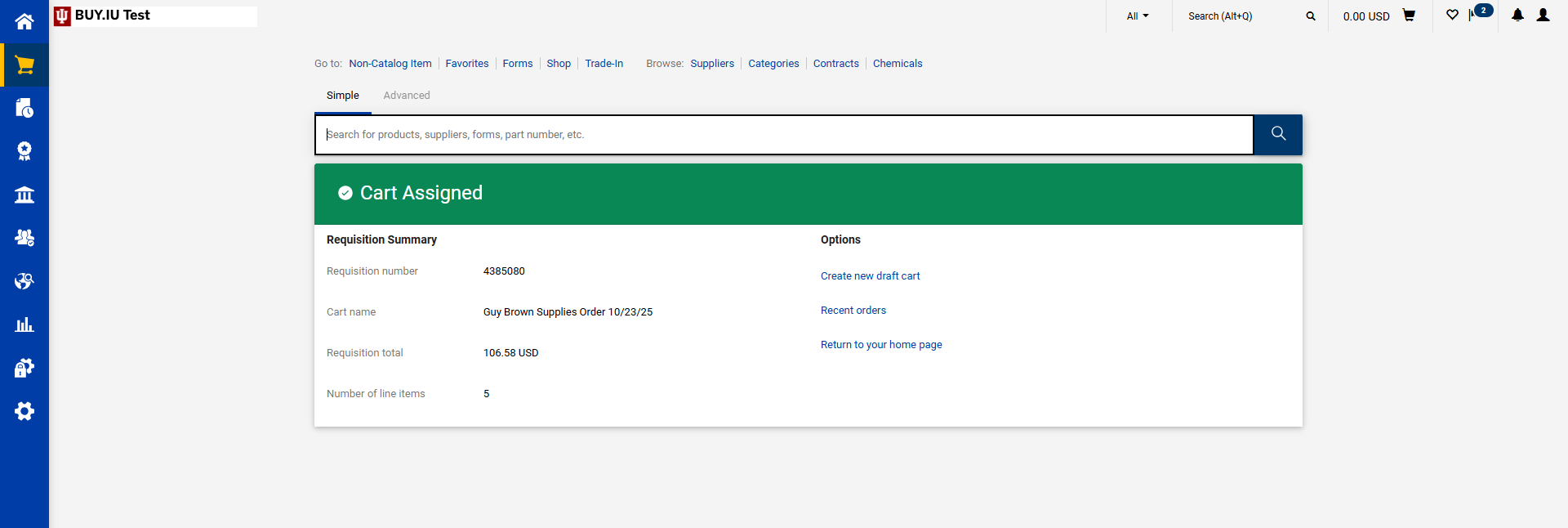
The assigned cart appears in the assignee’s Cart Management page on the Assigned Carts tab, and you can also find the cart in your own Assigned Carts tab.