Every BUY.IU requisition starts as a shopping cart, and you can save multiple shopping carts in your Cart Management section. This page demonstrates how to delete and reactivate carts.
Periodically review your Cart Management page and delete carts you no longer need. This makes it easier to find the orders you’re actively working on.
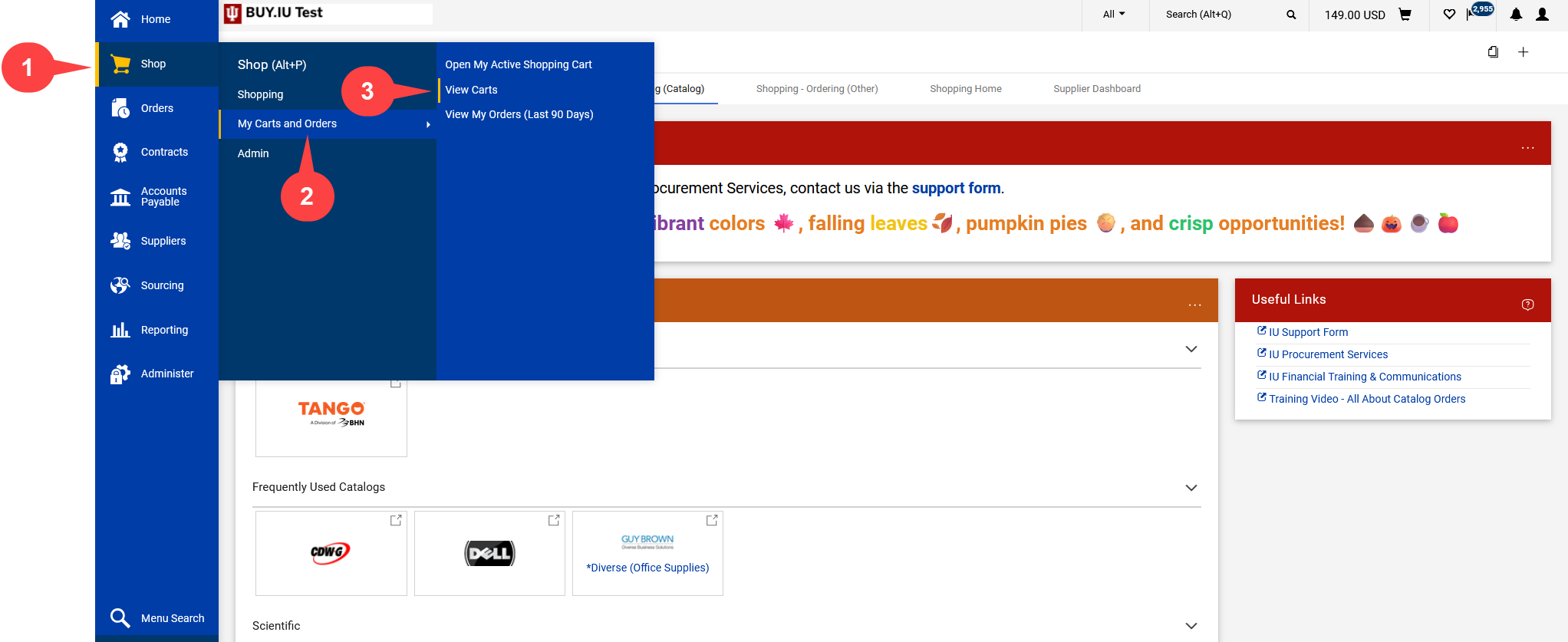
Step 1: Login to BUY.IU and select the Shop module.
Step 2: Select the My Carts and Orders menu option.
Step 3: Select View Carts.
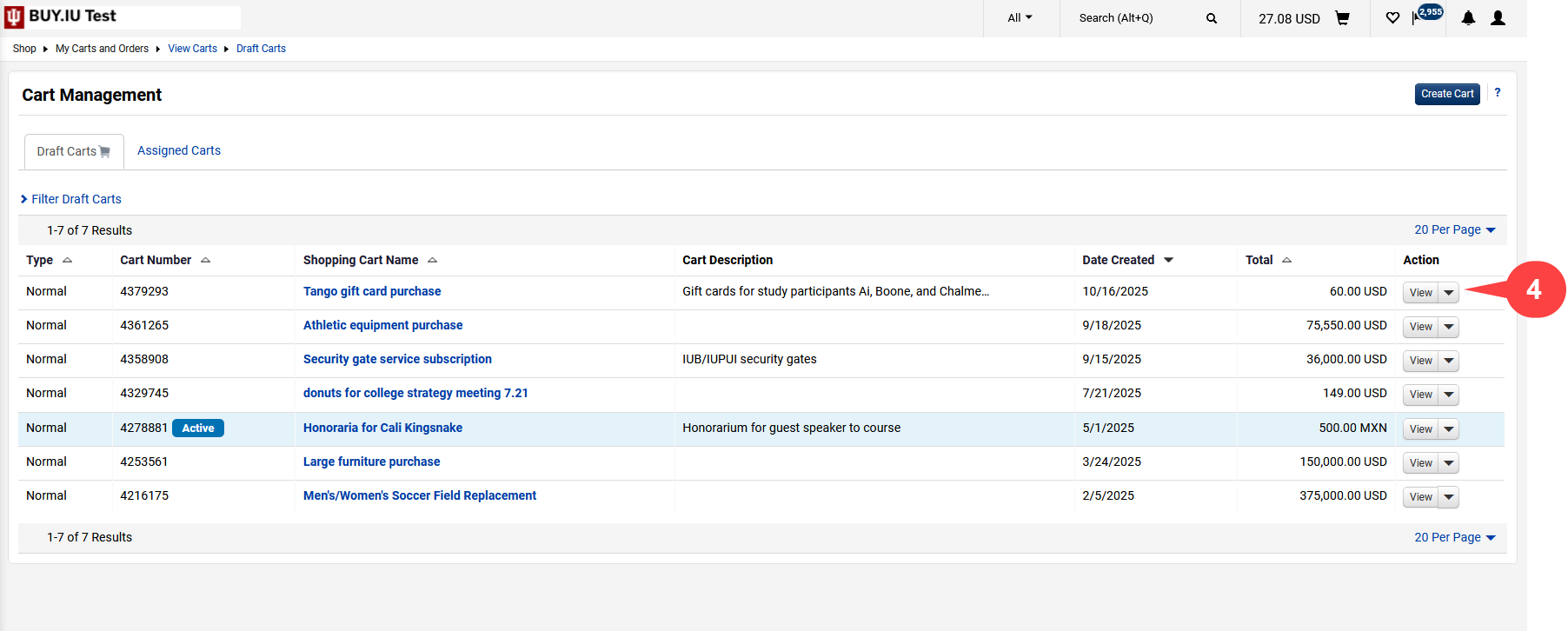
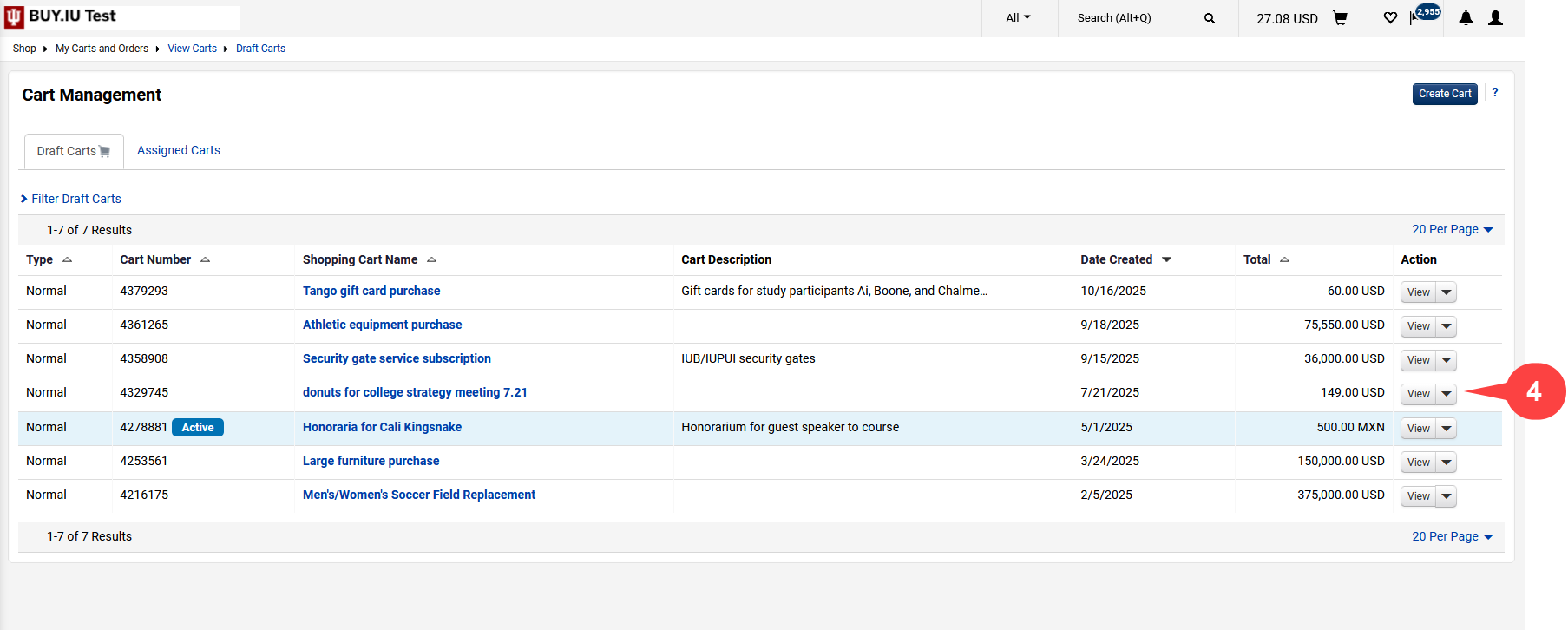
Step 4: On the Cart Management page, locate the cart you want to delete and click the click the View button (indicated by the ▼ icon) in the Action column.
In this example, we want to delete the shopping cart titled “Tango gift card purchase.”
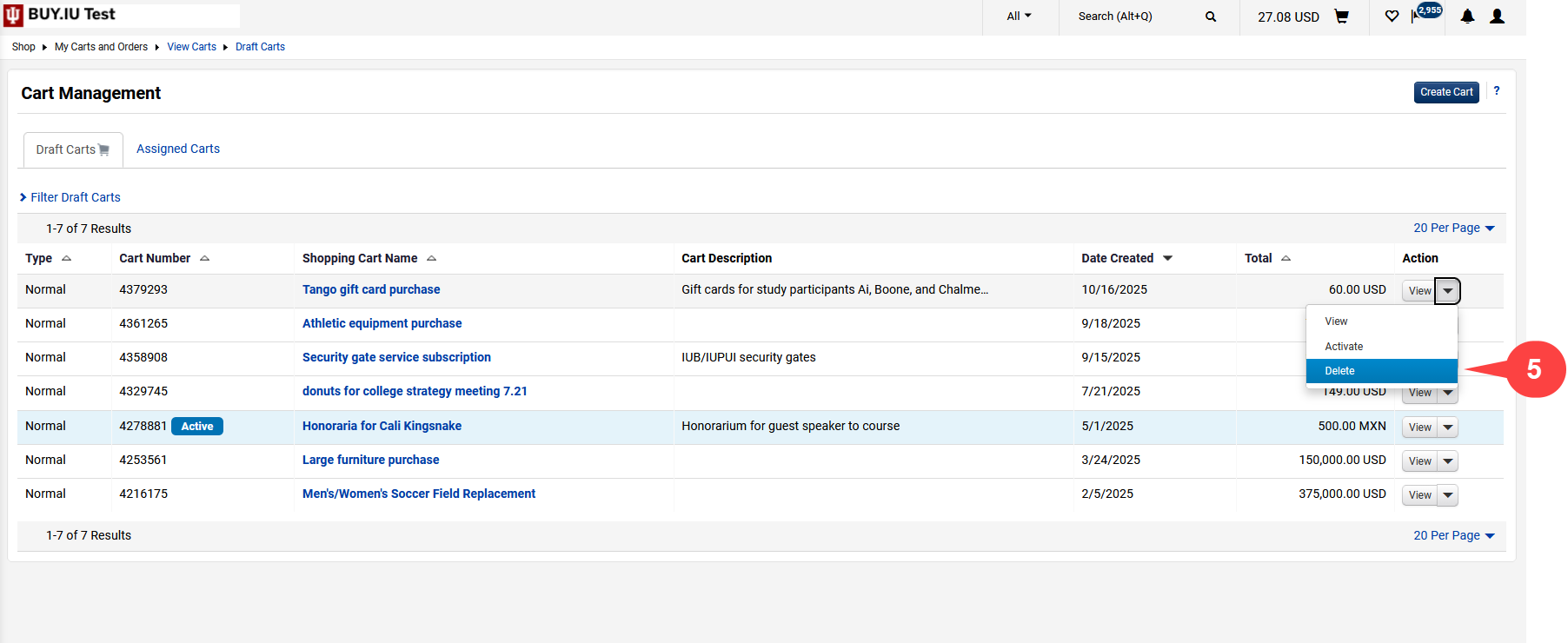
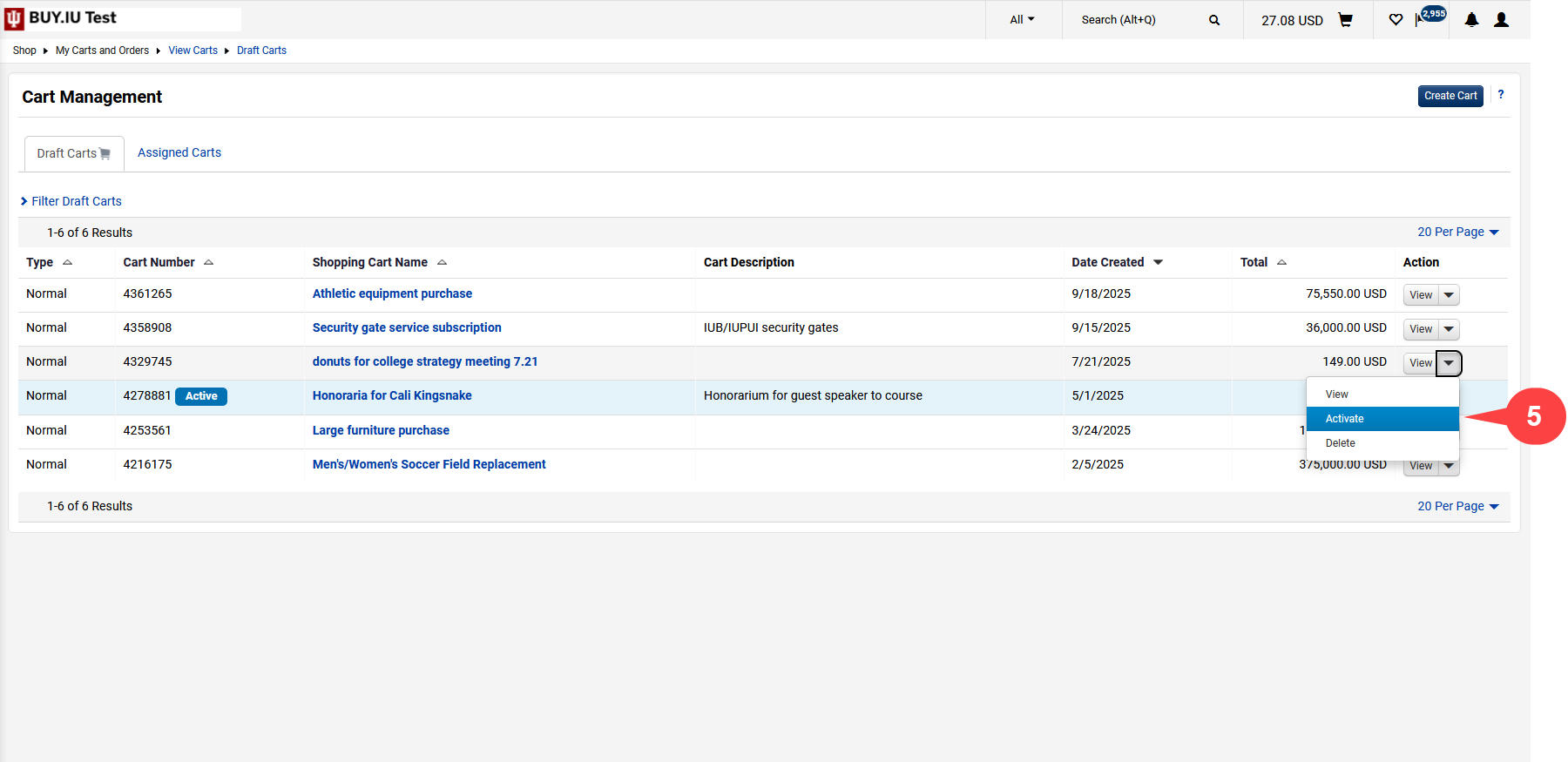
Step 5: Click the Delete button in the drop-down menu.
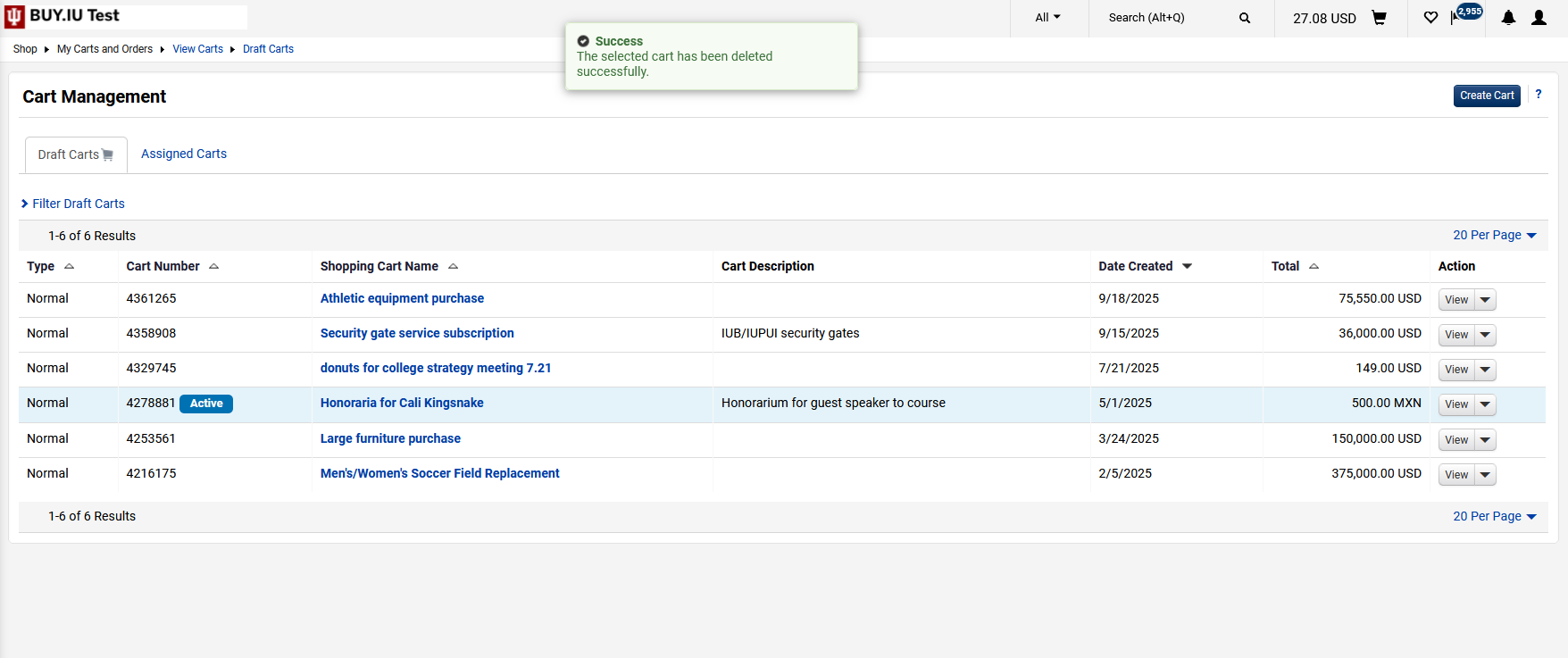
A pop-up message appears confirming that you successfully deleted the cart. Repeat steps 4 and 5 above to delete additional carts.
Step 4: On the Cart Management page, locate the cart you want to delete and click the click the View button (indicated by the ▼ icon) in the Action column.
Step 5: Select the Activate option in the drop-down menu.
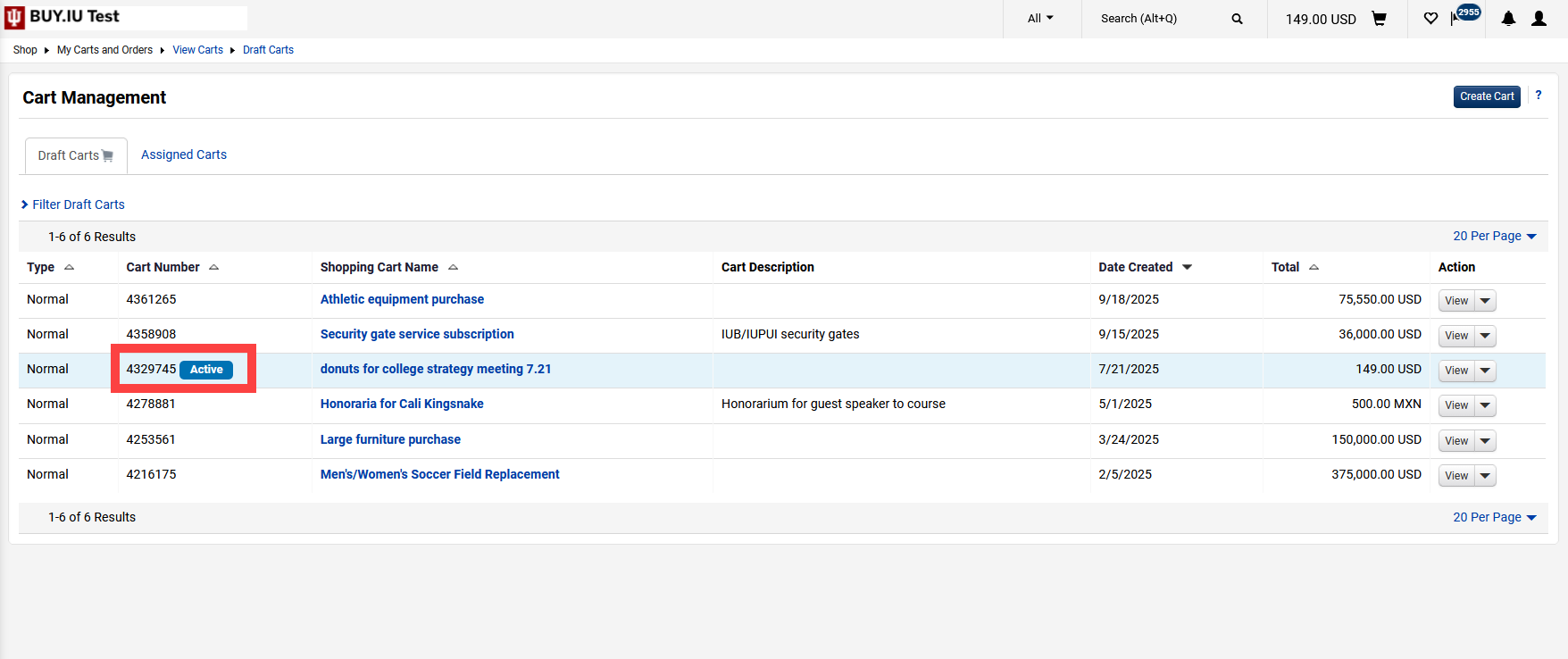
The window refreshes. The cart you selected now has an Active icon in the Cart Number column.
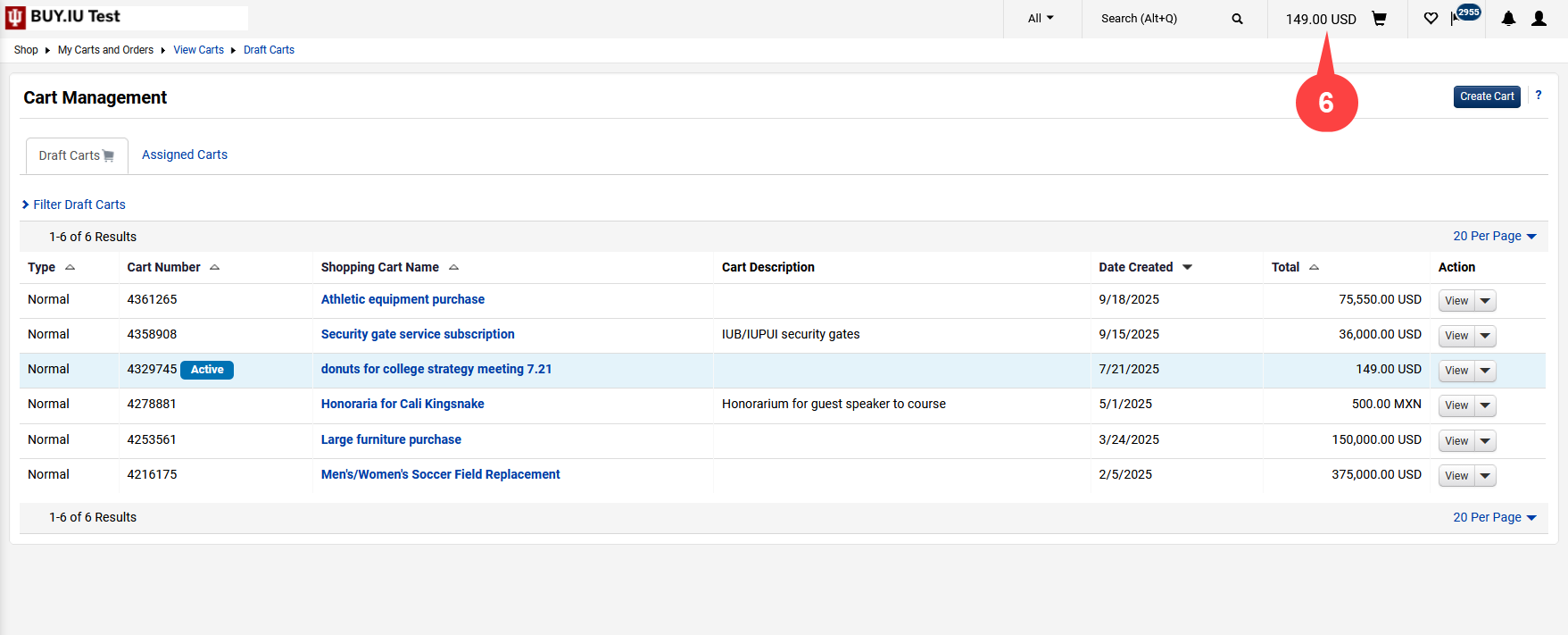
Step 6: Click the Shopping Cart in the top navigation menu to make edits and submit the order.
Additional links and resources
INDIANA UNIVERSITY Financial Training & Communications
Cyber Infrastructure Building (CIB) 2709 E 10th St Bloomington, IN 47408 Email:estc@iu.edu