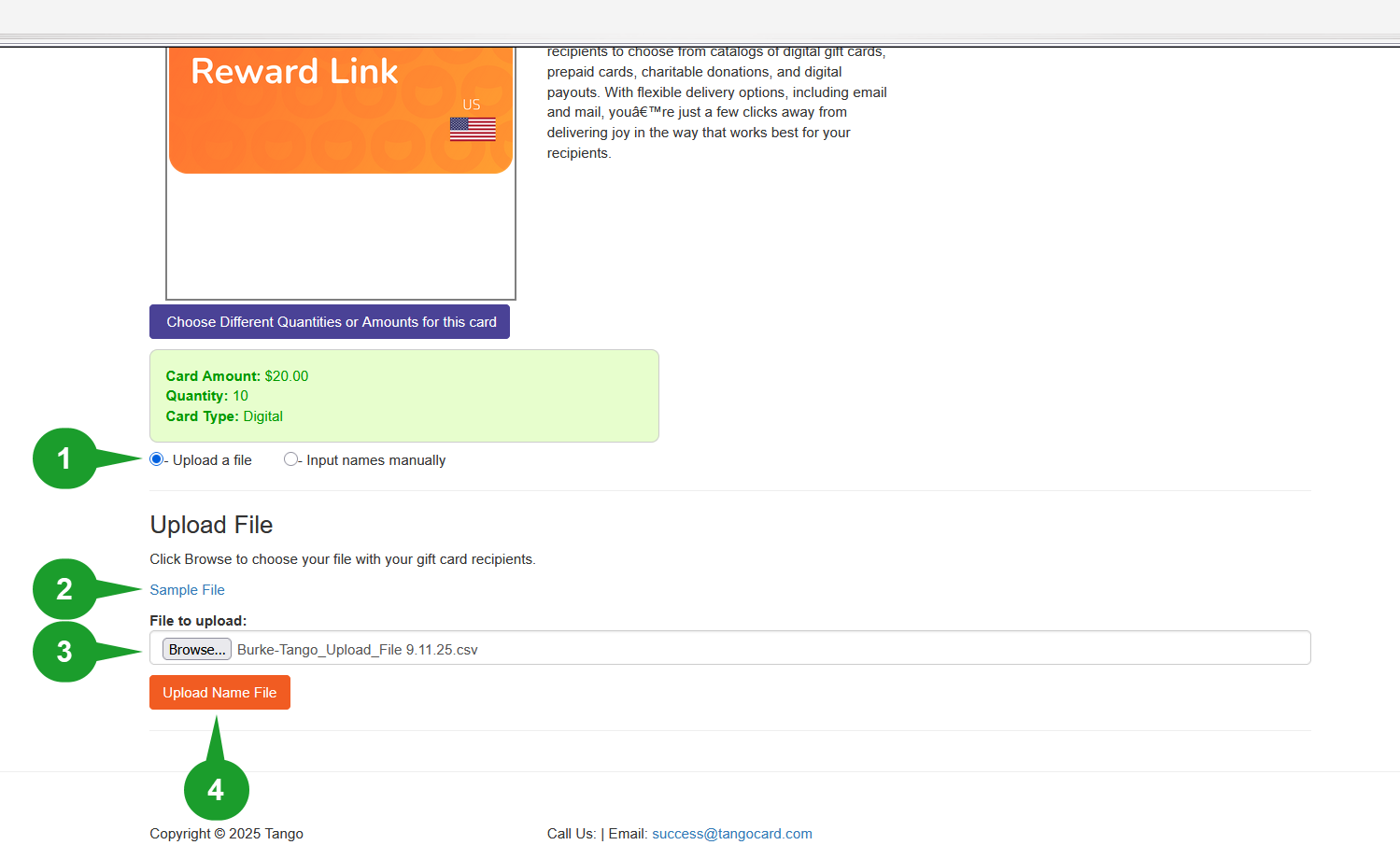

Tango is a digital gift card catalog in BUY.IU. Use this catalog when you know who needs to receive a gift card and you want to send the digital code to them directly. With Tango, you set the value of the gift card, and the recipient chooses the type of gift card(s) they want to receive.
This page describes how to locate the Tango catalog and use it to place an order.
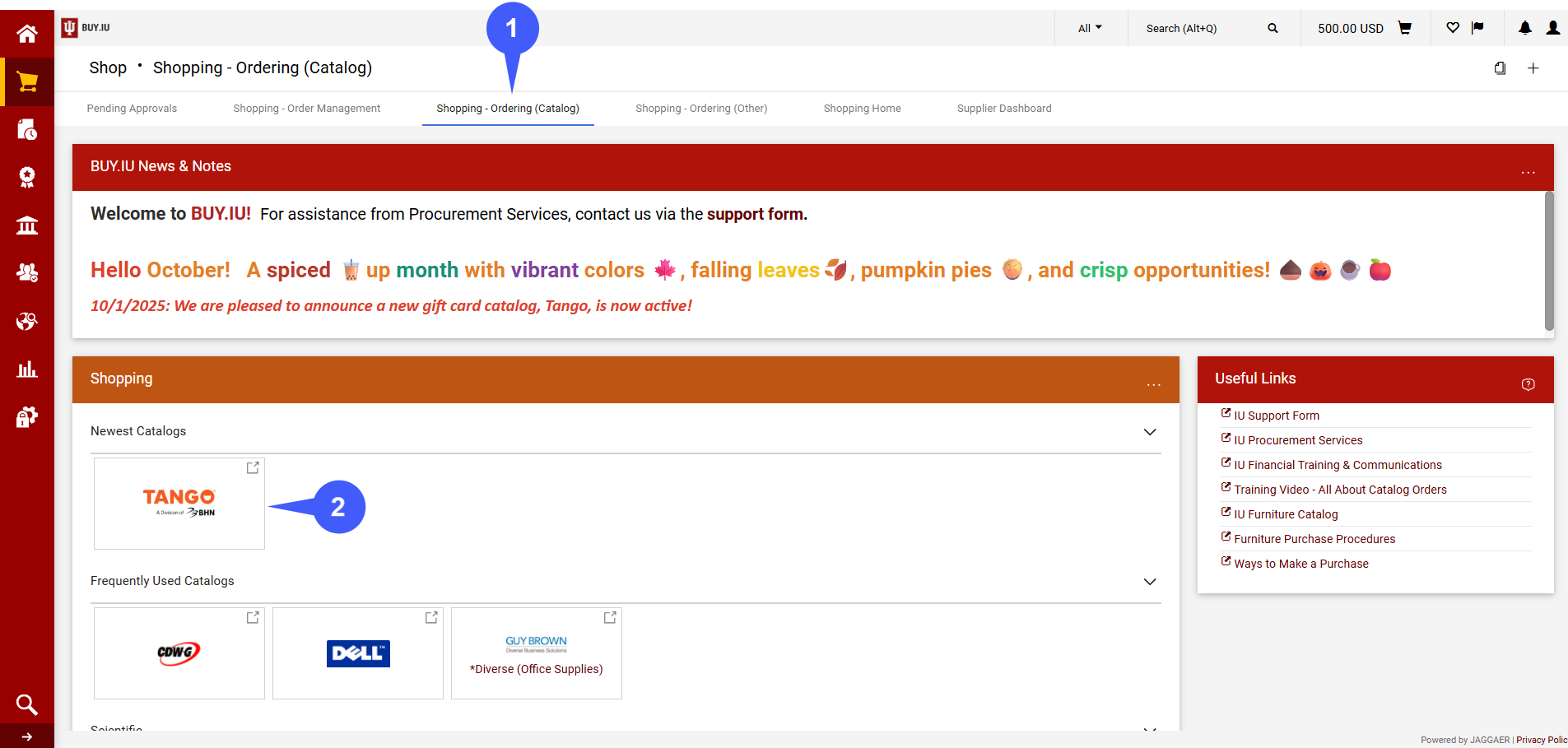
Step 1: Open BUY.IU and select the Shopping – Ordering (Catalog) dashboard at the top of the page. Scroll down to the Shopping section and locate the Newest Catalog showcase.
Step 2: Click the Tango sticker.
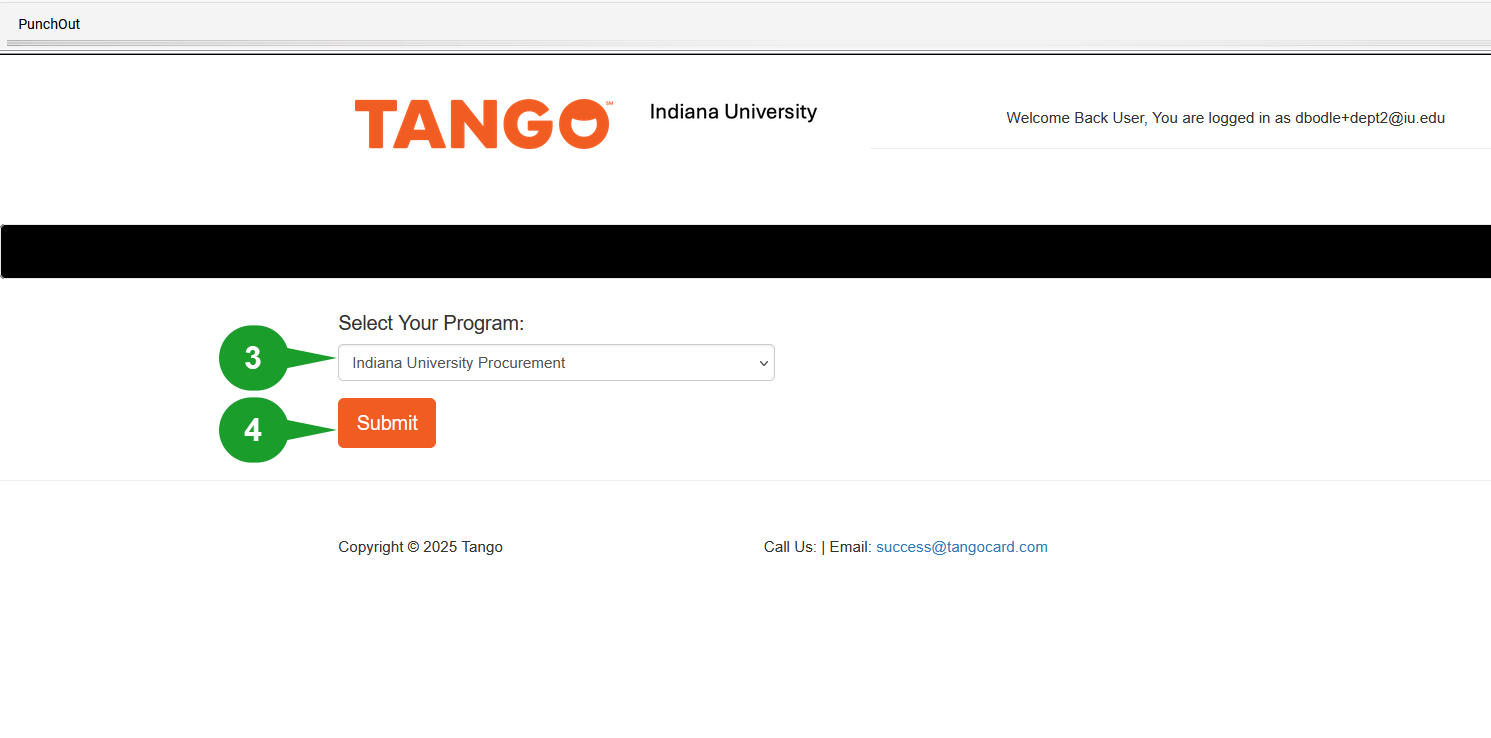
The catalog site opens.
Step 3: Select Indiana University Procurement from the Select your Program drop-down menu.
Step 4: Click Submit to continue.
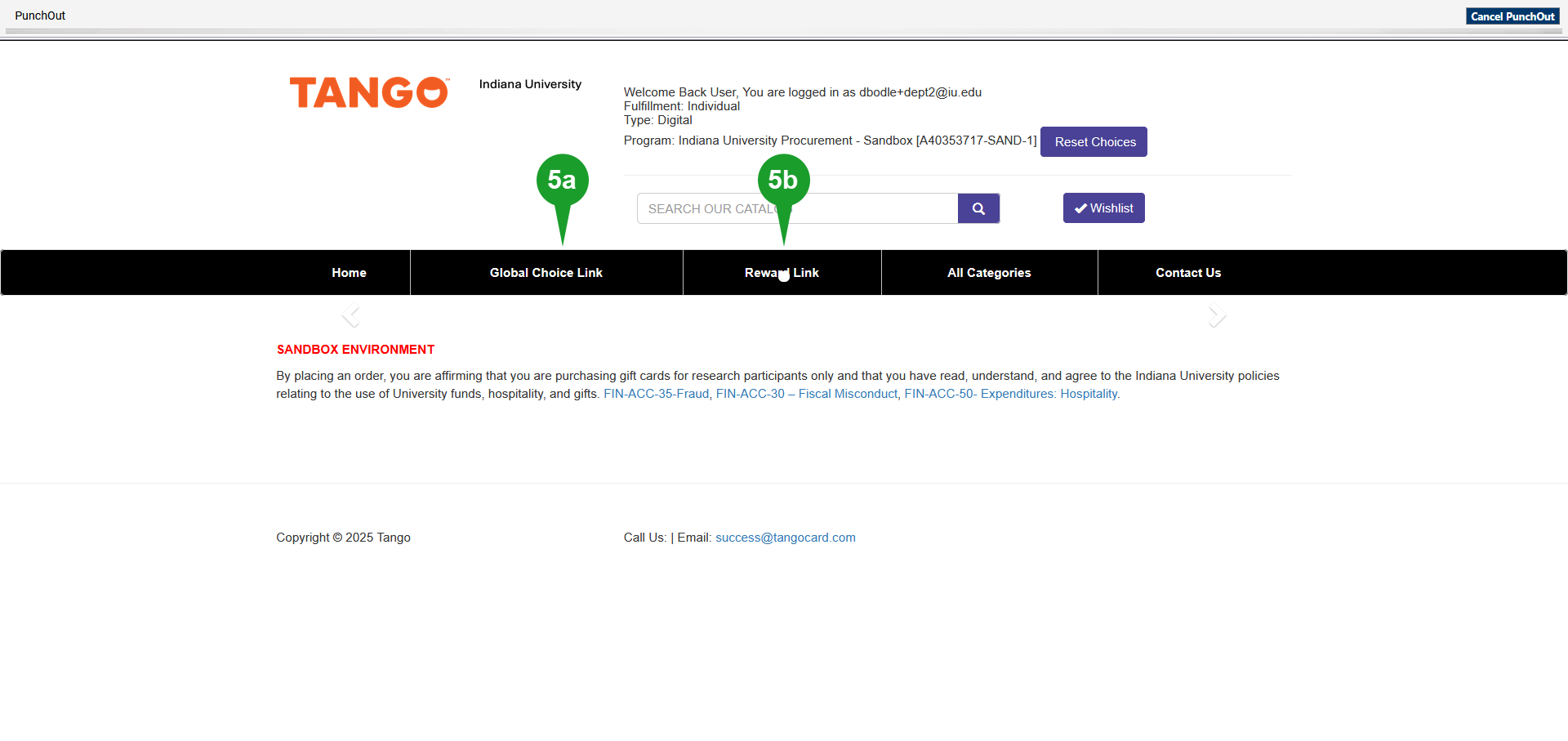
The catalog homepage opens.
Step 5: Tango gift cards are purchased by invitation link type. Once a recipient receives an invitation link, they choose what type of gift card they want in the value your department purchased. Select one of the following options.
- Global Choice Link: Click this option to buy gift cards that can be used domestically and internationally.
- Reward Link: Click this option to buy gift cards that can only be used domestically.
In our example, we will click the Reward Link, as our recipients are all in the United States.
The Reward Link Category page opens. The Reward Link Category page displays gift card value options to send recipients in increments of $5. If you need values greater than $100, use the left navigation menu to see larger values.
Step 6: Click Add to Cart to add a Reward Link value to your cart.
Step 7: If needed, select the Reward Link $105-200 in the left navigation menu to select larger values.
In our example, we are purchasing $20.00 gift cards for our recipients.

The Reward Link page opens.
Step 8: In the Quantity field, enter the number of gift card links you need to buy.
Step 9: Click the Now enter or upload your recipients button to enter information about who should receive the gift card links.
We entered 2 in the Quantity field, because we are purchasing two $20 gift cards to send to recipients.

The page refreshes to allow you to enter recipient information.
Step 10: Select one of the two radio buttons next to Add Recipients to enter recipient information for this order. Select the appropriate options and follow the instructions.